In the fast-paced world of UI UX design, efficiency is paramount. Designers are constantly balancing creativity with tight deadlines, making it crucial to find tools that help streamline the design process without compromising quality. Plugins for UI UX designers have emerged as essential tools to achieve this balance, offering a range of functionalities that can significantly speed up workflows. Whether you’re working on a large-scale project or refining the details of a single interface, the right plugins can make all the difference.
Plugins are not just about saving time; they also enhance the design process by automating repetitive tasks, providing quick access to resources, and improving collaboration among team members. For those pursuing a UX design certification or enrolled in a UI UX design course, becoming proficient in these plugins is a key step toward mastering the craft. In this article, we’ll explore five of the most effective time-saving plugins that every UI UX designer should consider integrating into their workflow.
1. Figma Plugin: Auto Layout
What is Auto Layout?
Auto Layout is a game-changer for UI UX designers using Figma. It enables designers to create responsive layouts that automatically adjust as elements are added, removed, or resized. This feature is particularly useful when designing components like buttons, cards, or entire sections that need to adapt to various screen sizes. Instead of manually adjusting the spacing and alignment of elements, Auto Layout does it for you, ensuring consistency and saving time.
Why Auto Layout is Essential
For UI UX designers, maintaining consistency across different devices and screen sizes is crucial. Auto Layout helps achieve this by allowing designers to create flexible components that respond intelligently to changes. This not only speeds up the design process but also reduces the likelihood of errors during handoff to developers. By incorporating Auto Layout into your workflow, you can focus more on creativity and less on manual adjustments, making it an invaluable tool for any UI UX designer.
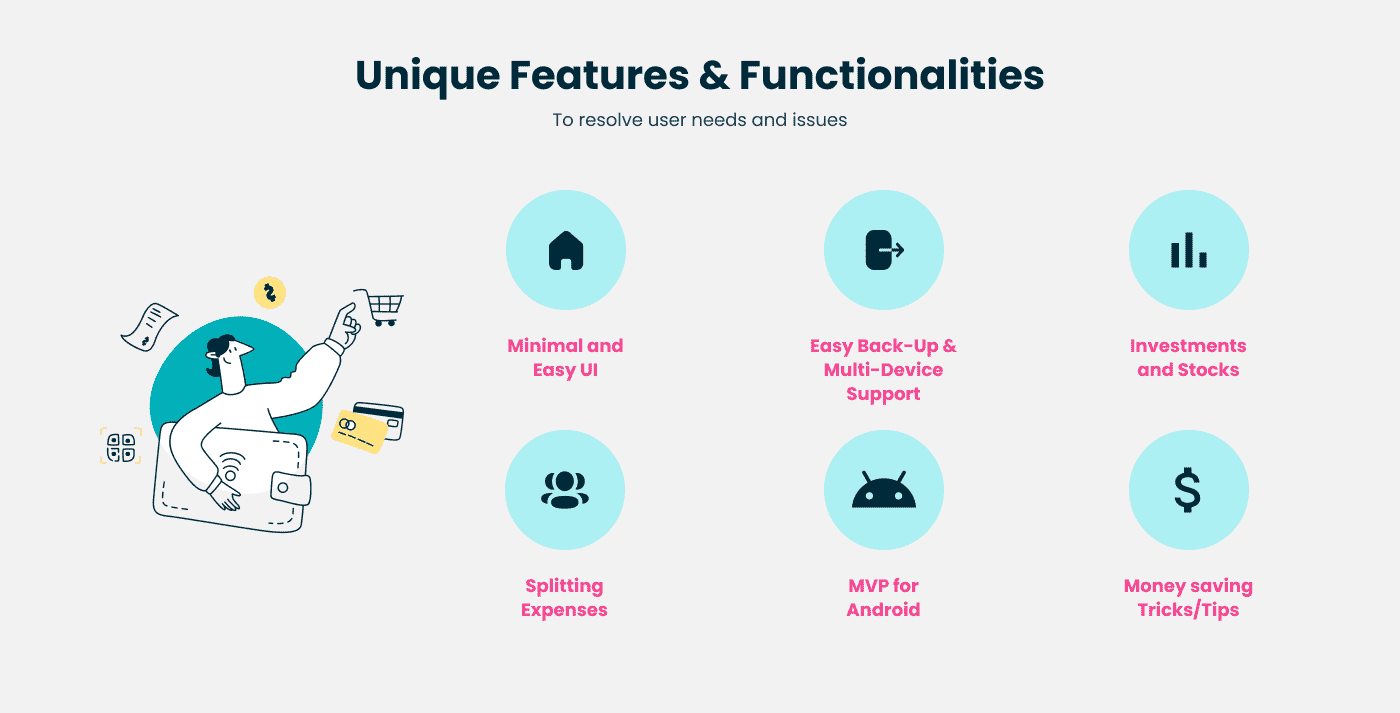
Design by a Kaarwan student_©Shivam Rawat
2. Figma Plugin: Content Reel
Streamlining Content Management
Content Reel is a powerful plugin that helps UI UX designers manage text, images, and icons efficiently. Instead of manually copying and pasting content from different sources, Content Reel allows designers to quickly populate their designs with realistic data. This is especially useful when working on projects that require consistent use of dummy text or placeholder images. The plugin supports various content types, including names, addresses, and even random images, making it a versatile addition to any designer’s toolkit.
Enhancing Productivity
By using Content Reel, designers can save significant time during the design phase, especially when dealing with large amounts of content. The ability to quickly generate and apply realistic content helps in creating more accurate prototypes and presentations, which can lead to better client feedback and faster project approvals. For those in a UI UX design course or pursuing UX design certification, mastering Content Reel can enhance your productivity and make your workflow more efficient.
3. Adobe XD Plugin: Stark
Improving Accessibility with Stark
Stark is a must-have plugin for UI UX designers who prioritize accessibility in their designs. It provides tools for checking contrast ratios, simulating color blindness, and ensuring that your designs meet accessibility standards. By integrating Stark into your workflow, you can create more inclusive designs that cater to a wider audience, which is increasingly becoming a crucial aspect of UI UX design.
Why Accessibility Matters
In today’s digital landscape, accessibility is no longer optional—it’s essential. Ensuring that your designs are accessible to all users, regardless of their abilities, is not only a best practice but also a legal requirement in many regions. Stark helps designers quickly identify and fix accessibility issues, making it easier to comply with standards like WCAG (Web Content Accessibility Guidelines). For UI UX designers looking to enhance their skills, gaining proficiency in accessibility tools like Stark is a valuable addition to your skillset.
4. Sketch Plugin: Craft
Streamlining Design and Prototyping
Craft by InVision is a powerful plugin that integrates seamlessly with Sketch, providing a suite of tools for design and prototyping. Craft allows designers to quickly create interactive prototypes, manage design assets, and collaborate with team members. Its unique features, such as syncing designs with InVision for real-time collaboration and generating realistic content from JSON files, make it an indispensable tool for UI UX designers.
Enhancing Collaboration
For UI UX designers working in teams, Craft’s collaboration features are particularly beneficial. The ability to sync designs and prototypes in real-time ensures that all team members are on the same page, reducing the risk of miscommunication and streamlining the design process. Whether you’re working on a complex UI design project or preparing for a UX design certification, mastering Craft can significantly improve your workflow and collaboration with other designers and stakeholders.
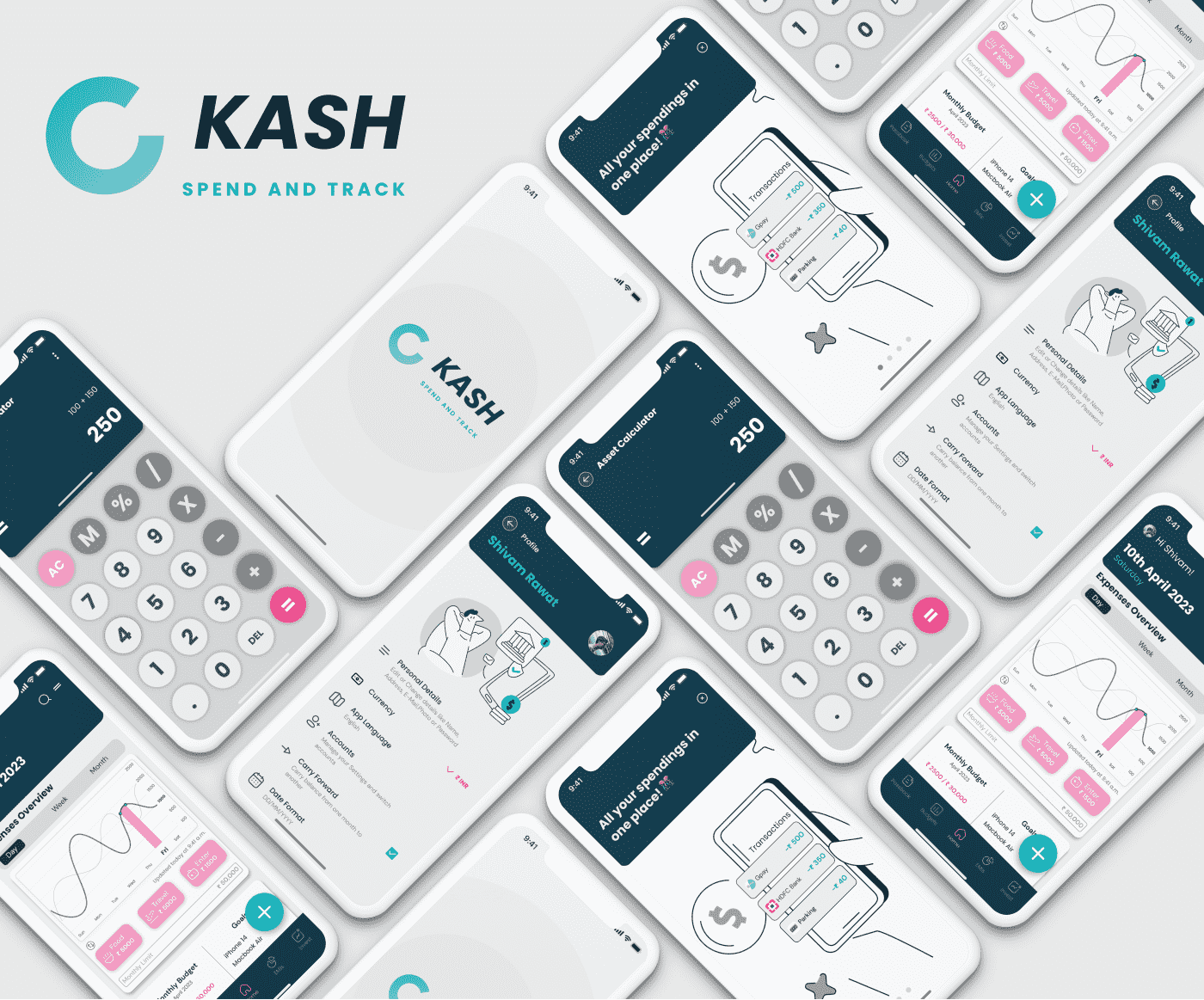
Design by a Kaarwan student_©Shivam Rawat
5. Zeplin: Bridging the Gap Between Design and Development
What is Zeplin?
Zeplin is a collaboration tool that bridges the gap between design and development. It allows UI UX designers to hand off their designs to developers with detailed specifications, including measurements, colors, and assets. Zeplin also generates style guides and code snippets, making it easier for developers to implement the designs accurately. For designers, Zeplin simplifies the handoff process, ensuring that the final product closely matches the original design.
Why Zeplin is a Must-Have
In any UI UX design project, the handoff to developers is a critical stage. Miscommunication or lack of clarity during this stage can lead to discrepancies between the design and the final product. Zeplin minimizes these risks by providing clear and detailed specifications, reducing the chances of errors and rework. For UI UX designers, especially those taking a UI UX design course or pursuing UX design certification, learning to use Zeplin effectively can enhance your ability to collaborate with developers and deliver high-quality designs.
Conclusion: Empowering UI UX Designers with the Right Tools
In the ever-evolving field of UI UX design, staying ahead of the curve requires not only creativity but also efficiency. By incorporating these top five time-saving plugins into your workflow, you can streamline your design process, improve collaboration, and deliver higher-quality work in less time. Whether you’re an experienced UI UX designer or just starting in the field, mastering these plugins will empower you to work smarter, not harder.
Are you ready to make a lasting impact? Dive into UI UX design and unlock a world of creative potential. Consider enrolling in Kaarwan's UI UX Design Certification Course to gain the tools and knowledge you need to flourish in this high-growth career.
Visit theKaarwan website for more insights! 📈
FAQs
Q1:What is the benefit of using Auto Layout in Figma?
A1: Auto Layout helps designers create responsive designs that adapt to changes in elements automatically. It saves time by ensuring consistent spacing and alignment, making it easier to maintain design integrity across different screen sizes.
Q2: How does Content Reel enhance the UI UX design process?
A2: Content Reel streamlines the process of managing text, images, and icons by allowing designers to quickly populate designs with realistic content. This efficiency leads to more accurate prototypes and faster project approvals, saving valuable time in the design phase.
Q3: Why is Stark important for accessibility in UI UX design?
A3: Stark ensures that designs meet accessibility standards by checking contrast ratios and simulating color blindness. By using Stark, designers can create inclusive, accessible designs that cater to all users, which is crucial for compliance and user satisfaction.
Q4: How does Craft improve collaboration in UI UX design?
A4: Craft by InVision enhances collaboration by syncing designs in real-time and allowing team members to work together seamlessly. This integration helps prevent miscommunication and ensures that everyone is aligned, leading to a more efficient design process.
Q5: What role does Zeplin play in the design-to-development handoff?
A5: Zeplin simplifies the handoff process by providing developers with detailed design specifications, including measurements, colors, and assets. This clarity reduces the risk of errors and ensures that the final product closely matches the original design intent.